Post Loads to DAT
Without Leaving Salesforce.
FTM’s DAT load board integration lets brokers and shippers post, update, and delete DAT load board listings directly from a Salesforce Load record, and lets carriers search DAT for available loads and create FTM records instantly. No tab switching. No duplicate entry.
Who This Integration Is For
Brokers & Shippers
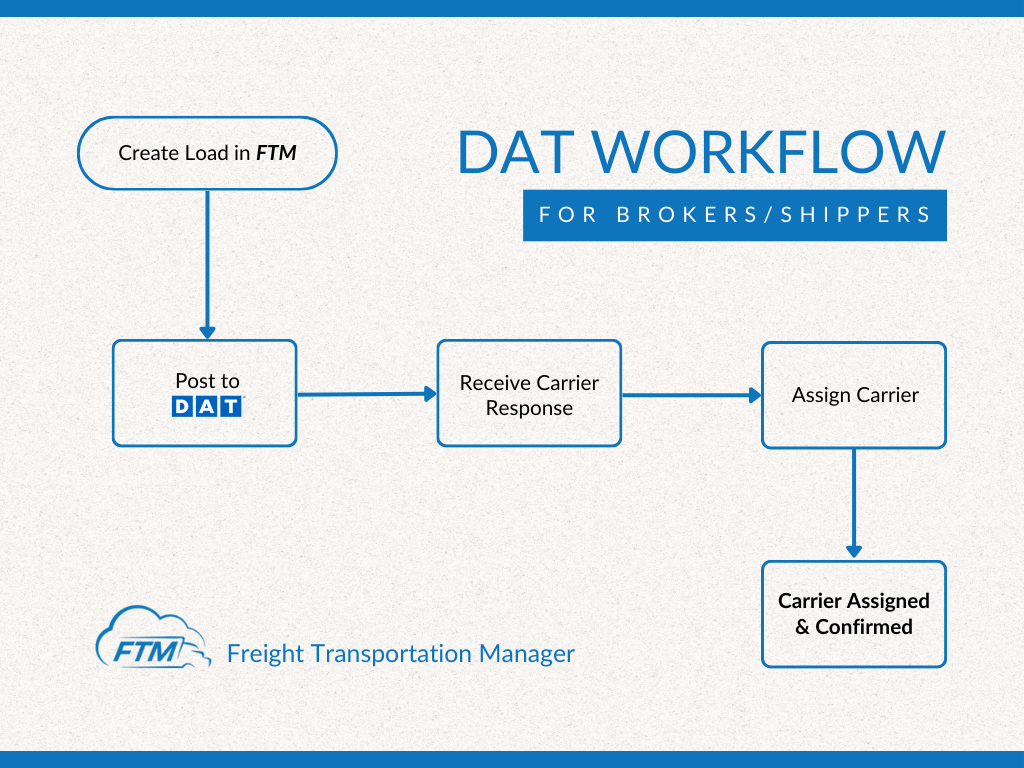
Post loads to the DAT load board the moment they’re ready, update when details change, and remove when covered. All from the FTM Load record in Salesforce. No re-entering data.
Carriers & Owner-Operators
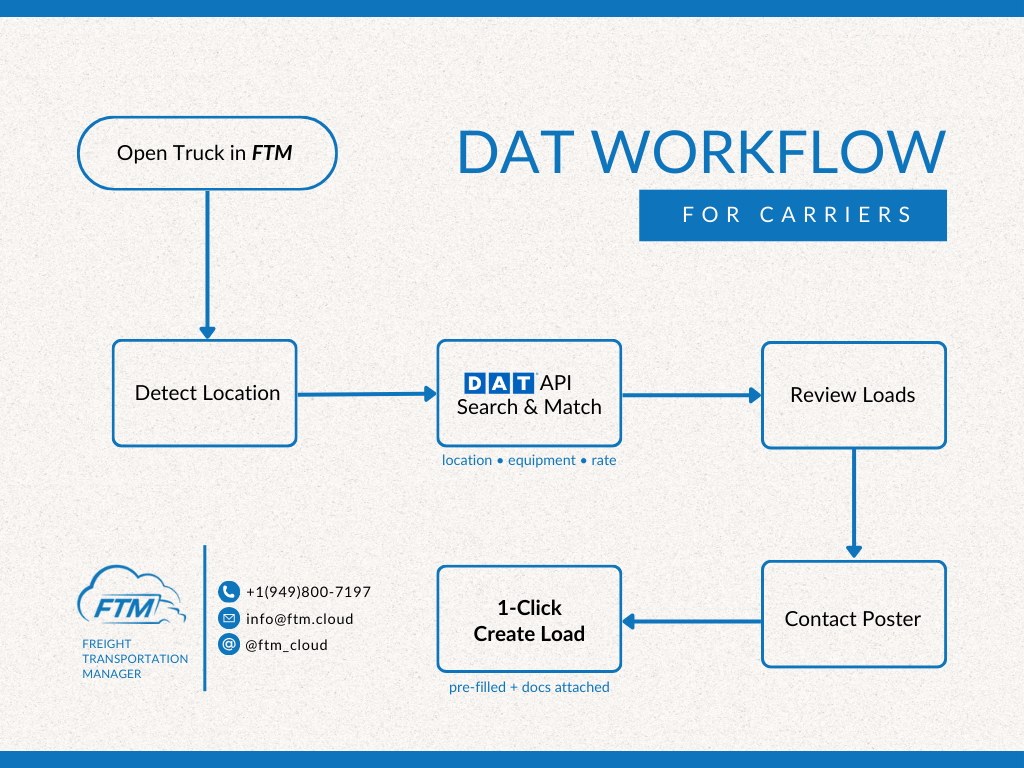
Search DAT for loads that match your drivers’ equipment, location, and rate, then create an FTM Load record in one click.
Dispatchers
Manage the full DAT lifecycle and carrier load search from a single screen, without ever leaving Salesforce.
What the DAT Load Board Integration Does
Two complete workflows built into FTM: one for brokers posting loads to DAT’s freight marketplace, one for carriers searching DAT loads. Both run entirely inside Salesforce.
Workflow A: Brokers & Shippers – Post / Update / Delete a load to the DAT load board from an FTM Load record
Post loads instantly
Click Post Load on any Load record and it goes live on DAT. The Posting ID and Shipment ID are saved back automatically.
Update when things change
Pickup window shift or rate change? Update Load syncs the DAT posting in real time. No re-entering data.
Delete when covered
Delete Load pulls the posting from DAT. Buttons disappear automatically so there’s no confusion about status.
Full audit trail
Every post, update, and delete creates a completed Salesforce Task on the Load, timestamped and visible to the whole team.
Post, Update, Delete buttons on the Load record
Posting confirmation logged as a Task
Workflow B: Search the DAT load board for a driver/truck and create an FTM Load record
Search by driver profile
FTM uses each driver’s equipment type, home location, max deadhead miles, and minimum rate per mile to query DAT automatically.
Smart filtering built in
Results filter by rate per mile, equipment match, and actual drive distance via Google Maps. Rejected loads show a reason.
Create a load in one click
Select a load and click Create Load in Salesforce. FTM creates a pre-filled Load record with origin, destination, equipment, and weight.
7-day search window
Covers loads with pickup windows from today through the next 7 days, always current and relevant.
Results with accepted and rejected loads
Creating an FTM Load from a selected resultHow to Activate the DAT Load Board Integration
Approximately 20 minutes. Requires your DAT account credentials and a Salesforce admin.
Get your DAT credentials
Log into your DAT account and locate your organization login credentials and Partner ID. Contact your DAT account manager if you don’t have the Partner ID, or email [email protected] and we’ll help. The DAT load board integration requires DAT Power or a qualifying DAT One plan with API access.
Send credentials to the FTM team
Email [email protected] with your DAT organization username and password. The FTM team stores them securely in a Salesforce Custom Setting and confirms when the connection is live. This is a one-time setup and credentials are never stored in plain text.
Set up driver and truck profiles (carriers only)
For carrier load search, each Driver or Truck record needs a city or zip code, equipment preference, max deadhead miles, and minimum rate per mile. Go to the Fleet module and complete these fields for any driver you want to use with DAT.
Test in sandbox first
FTM activates the integration in your sandbox before going live. Test by opening a Load record and clicking Post Load, then confirm the posting appears in your DAT account.
Go live
Once sandbox testing passes, the FTM team activates the production connection. Post Load, Update Load, Delete Load, and Search Loads become available to all users with the appropriate profile.
Using the Integration
Frequently Asked Questions
Does this work with DAT One, DAT Power, or both?
FTM connects to DAT’s Posting API, which is available on DAT Power and qualifying DAT One plans. Contact your DAT account manager to confirm your plan includes API access, or ask the FTM team at [email protected].
Do I need a DAT developer account to set this up?
No. You need an active DAT subscription with API access enabled and your organization credentials. The FTM team handles the technical configuration on your behalf. No code required from your side.
Can I post to both DAT and Truckstop from the same Load?
Yes. FTM supports both DAT and Truckstop integrations independently. You can post to one or both load boards from the same Load record. See the Truckstop integration page for details.
What happens if I click Post Load twice?
The first click creates the posting and saves the Posting ID. Clicking again updates the existing posting. It won’t create a duplicate. Once a Posting ID exists, the system always updates rather than re-posts.
What if a driver’s profile is incomplete?
Search Loads will show a validation message if any required fields are missing: city or zip code, equipment preference, max deadhead miles, minimum rate per mile, or Active status. Complete these on the Driver/Truck record before searching.
How far out does carrier load search look?
The search covers loads with pickup windows from today through the next 7 days. Contact [email protected] if you need a wider window.
Is my DAT login stored securely in Salesforce?
Yes. Credentials are stored in a Salesforce Hierarchy Custom Setting, access-controlled and not visible to standard users. Tokens retrieved during API calls are cached for 28 minutes then auto-expire. They are never written to any record or log.
Does the integration sync DAT status back to FTM automatically?
Not automatically. The current integration covers load posting management and carrier search. Status changes in DAT are not pushed back to FTM in real time. Update the FTM Load status manually after confirmation.
See DAT in FTM live
Book a 15-minute demo and we’ll walk through load posting and carrier search in a live org.
Book a DemoAlready using FTM?
Get help connecting DAT to your live org or troubleshoot an existing setup.
Email Support⚙ Developer & Admin Reference For Salesforce Admins & Developers
Prerequisites
- Active DAT subscription with API access (DAT Power or qualifying DAT One plan)
- DAT organization login credentials and Partner ID
- Salesforce FTM org with System Administrator access
- Custom Setting:
DAT_Org_Credential__cwithDAT_Login_Id__candDAT_Login_Password__cpopulated - Platform Cache partition:
local.DATCacheTokenmust exist before first API call - Google Maps API key (for distance validation in carrier load search)
Authentication and Token Architecture
FTM uses a two-token flow with DAT’s Identity API. Tokens are cached via Salesforce Platform Cache to avoid redundant authentication calls.
| Component | Detail |
|---|---|
| Token type 1 | Organization token, authenticates the FTM org against DAT |
| Token type 2 | User token, authenticates the individual Salesforce user session |
| Credential storage | DAT_Org_Credential__c Hierarchy Custom Setting (admin-only access) |
| Cache partition | local.DATCacheToken (must be created in Setup › Platform Cache) |
| Org token key | DATORGTokenV1 |
| User token key | DATUSERTOKENV1{USER_ID} |
| Token TTL | 28 minutes, auto-expires, new token fetched on next call |
| Required header | x-dat-partner-id: [YOUR_PARTNER_ID] |
Apex Component Reference
| Component | Type | Purpose |
|---|---|---|
PostLoadDat2 | Apex Class | Posts an FTM Load to DAT. Handles token retrieval, payload construction, saves DAT IDs back to the Load. |
PostLoadDat2Controller | VF Controller | Executes Post / Update / Delete, renders result HTML, creates Completed Task log. |
UpdateLoadDat2 | Apex Class | Updates an existing DAT posting. Requires DAT_Post_Id__c to exist. |
DeleteLoadDat2 | Apex Class | Deletes a DAT posting. Accepts 200/202/204/404 as success, handles already-deleted gracefully. |
PostDriverLoadDat | Apex Class | Searches DAT loads for a Driver/Truck. Filters by RPM, equipment, and distance. Creates FTM Load from selected result. |
Field Mapping: Workflow A – Post Load (FTM to DAT)
| FTM Field | DAT Field | Notes |
|---|---|---|
FreightTM__Pickup_City__c | lane.origin.city | Required |
FreightTM__Pickup_State__c | lane.origin.stateProv | Required |
FreightTM__Pickup_Zip_Code__c | lane.origin.postalCode | Required |
FreightTM__Delivery_City__c | lane.destination.city | Required |
FreightTM__Delivery_State__c | lane.destination.stateProv | Required |
FreightTM__Required_Trailer__c | freight.equipmentType | Mapped to DAT codes: V, R, F, PO etc. |
Service__c | freight.fullPartial | STL to PARTIAL, FTL to FULL |
FreightTM__Weight__c | freight.weightPounds | Optional |
FreightTM__Pickup_Date__c | exposure.earliestAvailabilityWhen | Defaults to now if null |
FreightTM__Delivery_Date__c | exposure.latestAvailabilityWhen | EOD rule + 6-month clamp applied |
(DAT response) id | DAT_Post_Id__c | Saved back to Load on success |
(DAT response) shipmentId | DAT_Shipment_Id__c | Saved back to Load on success |
Field Mapping: Workflow B – Load Search (DAT to FTM)
| DAT Response Field | FTM Load Field | Notes |
|---|---|---|
id | DAT_Post_Id__c | Stored on new FTM Load |
shipmentId | DAT_Shipment_Id__c | Stored on new FTM Load |
lane.origin.* | Pickup City / State / Zip | Pre-filled on new Load |
lane.destination.* | Delivery City / State / Zip | Pre-filled on new Load |
lane.pickupDates.start | FreightTM__Pickup_Date__c | Converted via Date.valueOf() |
freight.weightPounds | FreightTM__Weight__c | Pre-filled on new Load |
freight.equipmentName | FreightTM__Required_Trailer__c | Pre-filled on new Load |
| (fixed) | FreightTM__Status__c | Set to ‘Assigned’ on creation |
Carrier Load Search – Filtering Logic
Loads returned from DAT pass through three filters before appearing as accepted:
💰 Rate Per Mile
rpm = rate / miles. Rejected if below driver’s Min_Rate_Per_Mile__c.
🚛 Equipment Match
Rejected if load equipment doesn’t match driver’s Equipment_Preference__c.
📍 Distance Check
Actual drive distance via Google Maps API. Rejected if over Max_Deadhead_mile__c.
Error Handling and Troubleshooting
| Error / Symptom | Most Likely Cause | Fix |
|---|---|---|
| Organization token error | DAT org credentials invalid or expired | Verify DAT_Org_Credential__c has correct username and password |
| Failed to post load. Please check required fields. | Missing lane fields on Load record | Confirm pickup and delivery city, state, and zip are all populated |
| Search Loads shows validation error | Driver/Truck missing required fields | Populate city/zip, equipment, max deadhead, min RPM, and confirm Active = true |
| All results rejected – Distance too far | Max deadhead too restrictive or Google API key issue | Increase Max_Deadhead_mile__c or verify Google Maps API key is active |
| Platform Cache errors on first run | local.DATCacheToken partition doesn’t exist | Go to Setup > Platform Cache and create an Org partition named DATCacheToken |
Testing Checklist (Sandbox)
Before you begin, confirm:
DAT_Org_Credential__cpopulated with valid credentials- Platform Cache partition
local.DATCacheTokenexists - Test Load has origin and destination city, state, and zip populated
- Test Driver/Truck has city/zip, equipment, max deadhead, min RPM, and Active = true
- Google Maps API key is active
Load posting (Workflow A):
- Click Post Load. Confirm
DAT_Post_Id__candDAT_Shipment_Id__care saved. - Confirm a Completed Task is created with the posting confirmation.
- Log into DAT and verify the posting appears with the correct lane and equipment.
- Change a field, then click Update Load, and verify DAT reflects the change.
- Click Delete Load. Confirm the posting is removed from DAT and buttons disappear.
Carrier load search (Workflow B):
- Click Search Loads. Confirm accepted and rejected loads appear with reasons shown.
- Select an accepted load and click Create Selected Load in Salesforce.
- Confirm the new FTM Load has origin, destination, equipment, pickup date, and DAT IDs.
- Confirm the driver is assigned and Status = ‘Assigned’.