Post Loads to Truckstop
Without Leaving Salesforce.
FTM’s Truckstop load board integration connects your Salesforce org directly to the Truckstop load board. Dispatchers and brokers post loads from a Load record in FTM with a single click. No tab switching, no copy-pasting, no double entry. The moment a load is ready, it goes live. The moment it’s covered, it comes down.
Who This Integration Is For
Freight Brokers
Post loads to the Truckstop load board the moment they’re ready, directly from the Load record in FTM. No opening a second browser tab. No re-entering data.
Carriers & Dispatchers
View available Truckstop loads from inside Salesforce and confirm posting status without ever leaving FTM.
Operations Managers
Reduce manual data entry and eliminate the risk of posting errors caused by copy-pasting between systems.
What the Truckstop Load Board Integration Does
Two complete workflows built into FTM: one for brokers posting loads to Truckstop’s freight marketplace, one for carriers viewing available loads. Both run entirely inside Salesforce.
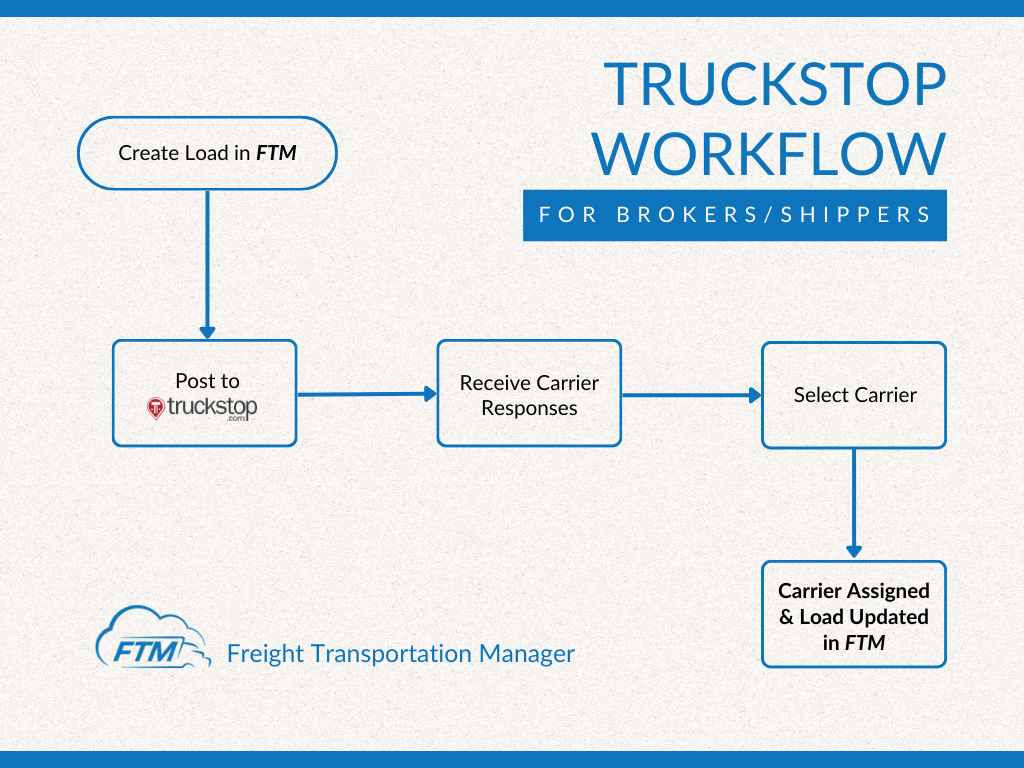 Workflow A: Brokers & Shippers – Post a load to the Truckstop load board directly from an FTM Load record
One-click load posting
Click Post Load to Truckstop on any FTM Load record and it goes live immediately. A success or error message confirms the result on screen.
Live load list view
An embedded Truckstop loads table updates automatically after each post. No leaving Salesforce to check the board.
Secure authentication
Credentials are handled via a Salesforce Named Credential, keeping login details out of the UI and out of the code entirely.
Safe dev and test mode
When credentials are not yet configured, the integration runs in mock mode, returning sample data so your team can test without a live Truckstop account.
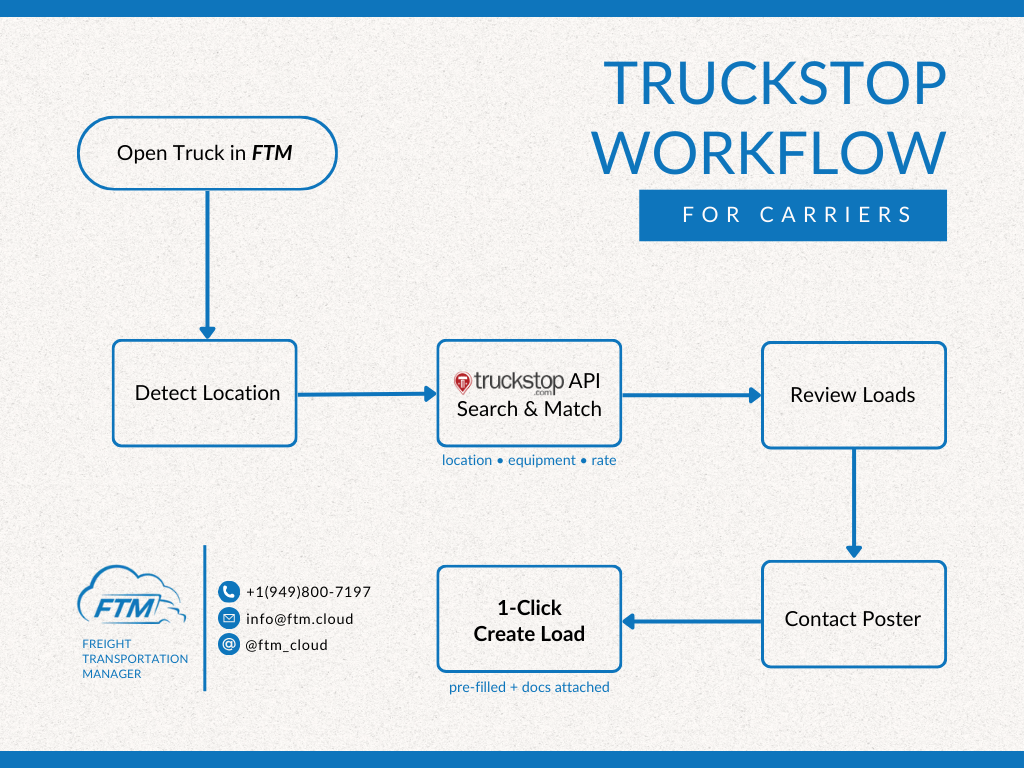 Workflow B: Carriers – View available Truckstop loads from inside FTM Salesforce
Live loads table in Salesforce
The embedded Truckstop loads table refreshes automatically so carriers and dispatchers can see the current board without leaving FTM.
Confirm posting status instantly
Verify that a load is live on Truckstop from the same screen you use to manage it in Salesforce. No switching tabs or logging into Truckstop separately.
How to Activate the Truckstop Load Board Integration
Approximately 15 minutes. Requires your Truckstop API credentials and a Salesforce admin.
Get your Truckstop API credentials
Log into your Truckstop account and retrieve your API access credentials. If you’re unsure whether your plan includes API access, contact your Truckstop account manager or email [email protected] and we’ll help.
Send credentials to the FTM team
Email [email protected] with your Truckstop API credentials. The FTM team will configure a Salesforce Named Credential and confirm when the connection is live. Credentials are never stored in Apex code, records, or logs.
Test in sandbox first
Open any Load record and click Post Load to Truckstop. Confirm the success message appears and the loads table refreshes. The FTM team can assist with sandbox testing before go-live.
Go live
Once sandbox testing passes, the FTM team activates the production connection. The Post Load to Truckstop button is immediately available to all users with the appropriate Salesforce profile.
Using the Truckstop Load Board Integration
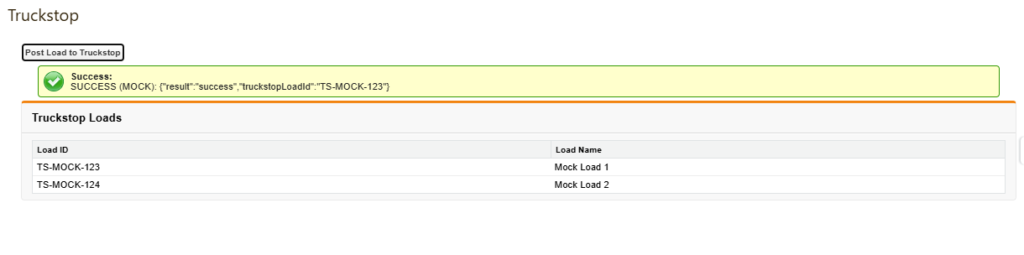 Post Load to Truckstop button and live Truckstop loads table inside FTM
Frequently Asked Questions
Does this work with my Truckstop plan?
API access is required. Contact your Truckstop account manager to confirm your plan includes it, or ask the FTM team at [email protected].
Can I post to both Truckstop and DAT from the same load?
Yes. FTM supports both integrations independently. Post to one or both from the same Load record. See the DAT integration page for setup details.
Does this support updating or deleting Truckstop postings?
The current version supports posting and viewing loads. Update and delete actions are on the roadmap. Email [email protected] to register your interest and be notified when they’re available.
Where are my Truckstop credentials stored?
In a Salesforce Named Credential. They are never stored in Apex code, records, or logs. Standard users cannot view or access them.
What if I click Post Load and nothing appears on Truckstop?
First confirm that all required load fields are populated (origin, destination, equipment type). If the issue persists, email [email protected] with your org details and we’ll investigate.
Is there a mock or test mode?
Yes. If the Named Credential is not yet configured, the integration returns mock data automatically. This lets your team test the full workflow safely without a live Truckstop connection.
See Truckstop in FTM live
Book a 15-minute demo and we’ll walk through load posting in a live org.
Book a DemoAlready using FTM?
Get help connecting Truckstop to your live org or troubleshoot an existing setup.
Email Support⚙ Developer & Admin Reference For Salesforce Admins & Developers
Prerequisites
- Active Truckstop subscription with API access enabled
- Truckstop API credentials (base URL and auth token/key)
- Salesforce FTM org (production or sandbox) with System Administrator access
- Named Credential:
Truckstop_Integration_Credentialsconfigured with the correct base URL and auth
Apex Component Reference
| Component | Type | Purpose |
|---|---|---|
TruckstopIntegration | Apex Class | Core class. Posts a load (POST /submit) and fetches the load list (GET /loads). Handles real vs. mock mode. |
TruckstopVFController | Apex Controller | Visualforce controller. Triggers post on button click, displays result message, refreshes the load table. |
| Visualforce Page | UI | Button: Post Load to Truckstop. Table: Truckstop Loads (ID + Name). Page messages region for success/error feedback. |
Authentication and Mode Detection
The integration uses a Salesforce Named Credential (Truckstop_Integration_Credentials) for all callouts:
callout:Truckstop_Integration_Credentials/submit– POST to submit a loadcallout:Truckstop_Integration_Credentials/loads– GET to fetch the load list
Schema.getGlobalDescribe().containsKey('Truckstop_Integration_Credentials') to detect whether the Named Credential exists. Schema.getGlobalDescribe() describes SObjects, not Named Credentials, so this will always return false and lock the integration permanently in mock mode. This must be fixed before production use. Flag for Hedi to replace with a proper credential check.Field Mapping and Payload
| FTM Action | Endpoint | Payload |
|---|---|---|
| Post Load | POST /submit | Full FreightTM__Load__c record serialized as JSON via JSON.serialize(load) |
| List Loads | GET /loads | No body. Returns [{"id":"...","name":"..."}] array. |
Error Handling
| Condition | Outcome |
|---|---|
| Named Credential missing or not configured | Mock mode activated. Safe for dev and test environments. |
| HTTP 200 | SUCCESS (REAL): response body shown to user. |
| HTTP non-200 | ERROR (REAL): response body shown to user. |
| GET /loads non-200 | Load table shows empty or mock data depending on mode. |
Testing Checklist (Sandbox)
Before you begin, confirm:
- Named Credential
Truckstop_Integration_Credentialsis configured with valid URL and auth - At least one Load record exists with origin and destination populated
Load posting tests:
- Open a test Load record. Click Post Load to Truckstop.
- Confirm a success message appears containing a Truckstop load ID.
- Confirm the Truckstop Loads table refreshes and shows the posted load.
- Log into your Truckstop account and verify the posting appears with the correct lane details.
- Remove the Named Credential and confirm mock mode activates with mock data shown.
