Most freight quotes don’t lose deals because of price. They lose because they’re slow, unclear, or hard to trust. FTM fixes all three.
A freight quote is more than a price — it’s the first impression your sales team makes on a potential customer. It needs to be fast, professional, and easy to understand. When it’s not, deals stall or go to a competitor who got there first.
In FTM, freight quotes live on the Lane Quote (LQ) object — a dedicated sales tool separate from the operational Load object. The sales team creates quotes on lanes, sends them to customers, and when a quote is accepted, it converts directly into a Load. No re-entry. No data loss. The pricing, lane, and customer details carry forward automatically.
What FTM’s Lane Quote Includes
Core Quote Details
- Customer — the account being quoted
- Customer Rate — the price you are charging the customer
- Rate to Carrier — your carrier cost, kept internal
- Carrier — the carrier being considered for the lane
- Mode — transportation mode (e.g. Ground, Air, Ocean, Rail)
- Contract — linked contract if applicable
Lane Details
- Pickup zip code(s) — the origin area for the lane
- Delivery zip code(s) — the destination area for the lane
- Lane region — used for historical lane pricing and smarter future quotes
Pipeline and Status
- Priority — sales priority level (e.g. Warm, Hot, Cold)
- Status — current stage in the quote pipeline (e.g. Sent to Customer, Accepted, Declined)
How It Works Inside FTM
The Lane Quote object is purpose-built for the sales workflow. It gives your team a structured, repeatable way to quote lanes — and it connects directly to operations when a quote is won.
Creating and sending a quote
- Create a new Lane Quote record in the Lane Quotes tab
- Set the customer, lane (pickup and delivery zips), customer rate, and carrier cost
- Set priority and status to track it in the sales pipeline
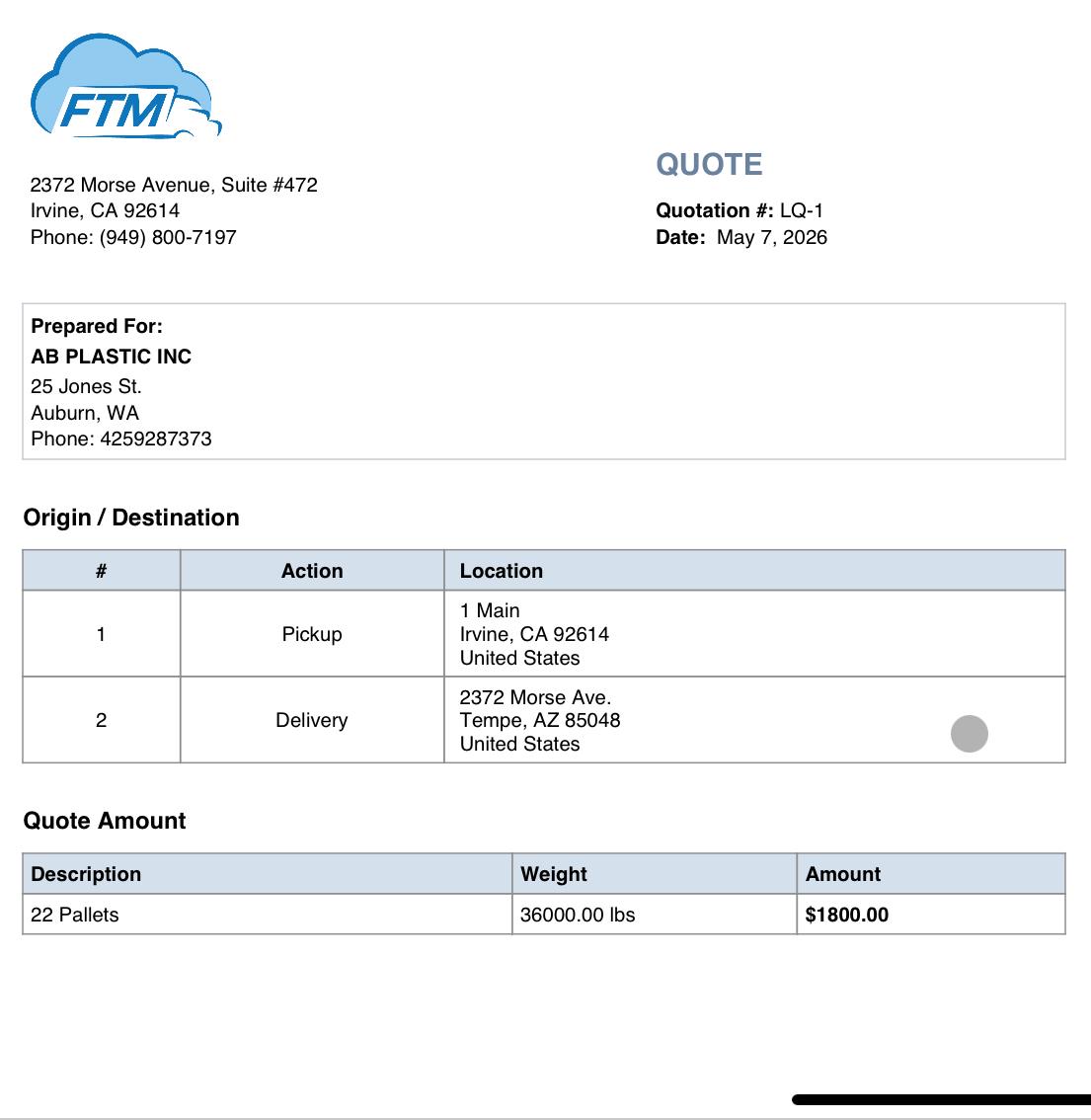
- Click Customer Quote from the action menu to generate the printable quote PDF
- Send to the customer for review
When the customer accepts
- Update the Lane Quote status to Accepted. (FTM can automate this process by allowing customers to accept quotes directly through a link, automatically updating the workflow in real time.)
- Click Create New Load directly from the Lane Quote record
- FTM creates a Load with the customer, pricing, and lane details already populated
- Operations takes it from there — no re-entry, no handoff errors
💡 The quote doesn’t disappear when it’s accepted. In most systems, a quote is a one-off email or spreadsheet that gets manually re-entered into operations. In FTM, the Lane Quote becomes the Load, the pricing, lane, and customer data carry forward automatically. That’s the difference between a quoting tool and a quoting workflow.
The system captures historical lane data to support smarter future pricing and operational decisions.
The Customer Quote PDF
When you are ready to send a quote to a customer, FTM generates a clean, professional PDF directly from the Lane Quote record. The Customer Quote action is available from the Lane Quote’s action menu and produces a printable document with your company branding, the lane details, and the customer rate.
This is the document your customer sees — not the internal record with the carrier cost and margin. The customer rate and lane are presented clearly, in a format that is easy to review and approve.
Managing Your Quote Pipeline
Because Lane Quotes are Salesforce records, your sales team gets full pipeline visibility without any extra tools. Every quote has a status, a priority, and a customer — and all of them are searchable, filterable, and reportable from within FTM.
- Filter by status to see all open, sent, or accepted quotes at a glance
- Sort by priority to focus on the highest-value lanes
- Use Salesforce reports and dashboards to track win rates by lane, customer, or time period
- Submit quotes for internal approval before sending to customers using the Submit for Approval action
Making the Quote Your Own
Company Logo
Your logo appears on the Customer Quote PDF. To upload or update it:
- In Salesforce Setup, navigate to Custom Code → Static Resources
- Click New, upload your logo file (PNG format), set Cache Control to Public
- Give it the name referenced in the Customer Quote template
- Save — the next quote generated will use your new logo
→ See Step #2 of the setup guide for the full logo upload walkthrough.
Company Information
Your company name, address, phone, and other details are pulled from Salesforce Organization settings and appear on every customer-facing quote document. To update them, go to Salesforce Setup → Company Settings → Company Information.
How the Lane Quote Connects to the Rest of FTM
The Lane Quote is the starting point of the freight document lifecycle. Once accepted, it triggers every operational document that follows — and all of them share the same underlying data.
Signed before the first load. Governs the entire relationship.
Lane Quote
Shipper requests a price. Broker or carrier responds with a quote.
Shipper formally offers the load. Carrier accepts or declines.
Sent immediately after acceptance. Locks in the lane, rate, and terms.
Generated at dispatch. Travels with the driver.
Signed at delivery. Triggers invoicing.
Sent to the customer after confirmed delivery.
Ready to see FTM in action?
Book a live demo and we’ll walk you through the full document workflow — Lane Quote, BOL, Rate Con, and Invoice — directly inside the platform.

Good info thanks