One click from the Load record. Auto-filled. Ready to sign.
The Bill of Lading (BOL) is the foundational shipping document in every freight operation. It serves as the contract between the shipper and the carrier, a receipt for the goods, and the document the driver carries during the entire move. Without it, the shipment shouldn’t leave the dock.
In FTM, the BOL is generated directly from the Load record — no manual data entry, no copy-pasting addresses, no separate template to fill in. Every field is pulled automatically from the load data your team has already entered.
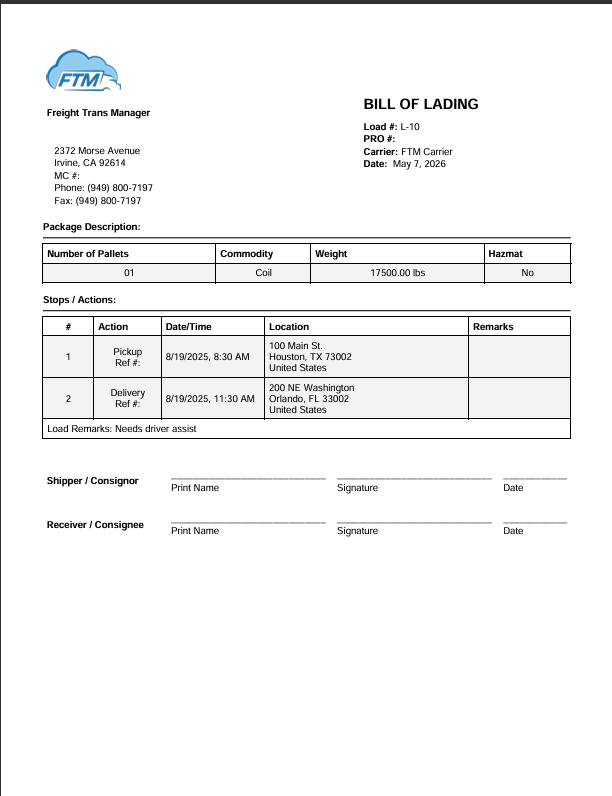
What FTM’s Bill of Lading Includes
FTM’s BOL captures all the information needed at pickup and delivery:
Header Information
- Load number — the unique identifier tied to the load record in Salesforce
- PRO number — the carrier’s tracking reference
- Carrier name
- Date issued
Package Description
- Number of pallets
- Commodity type
- Total weight (lbs)
- Hazmat flag (Yes / No)
Stops and Actions
Each stop is listed in sequence — pickup first, any intermediate stops in the middle, delivery last. For each stop the BOL shows:
- Stop number and action type (Pickup / Delivery)
- Scheduled date and time
- Full address (street, city, state, zip, country)
- Reference number
- Remarks / special instructions
Signature Lines
The BOL includes two signature blocks at the bottom — one for the Shipper/Consignor and one for the Receiver/Consignee — with fields for printed name, signature, and date.
How It Works Inside FTM
The BOL is generated directly from the Load object in Salesforce. Once a load is created and the required fields are filled in, a single button click produces the finished PDF — no separate tool, no template to manage.
Step by step
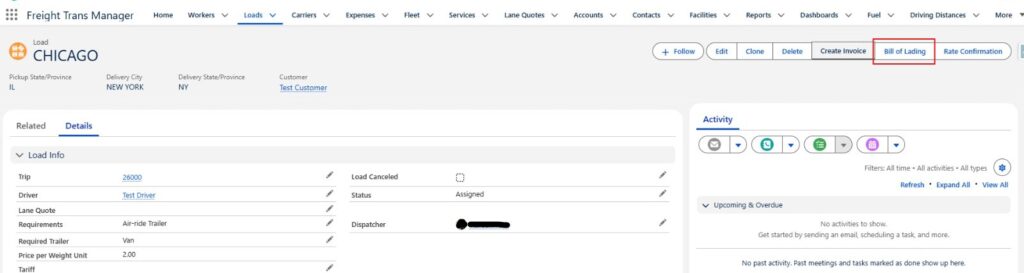
- Open the Load record in FTM
- Click the Bill of Lading button in the top action bar
- FTM generates the PDF using all data already on the load — addresses, carrier, commodity, weight, stops, and remarks
- Download or share the PDF directly
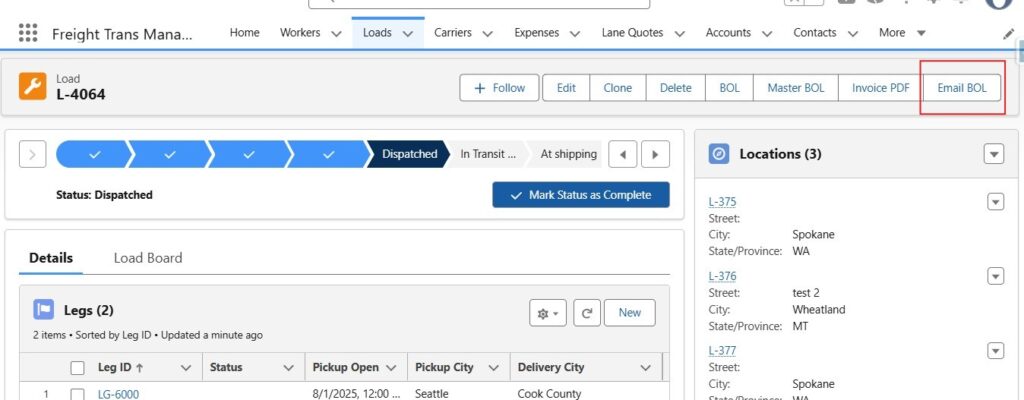
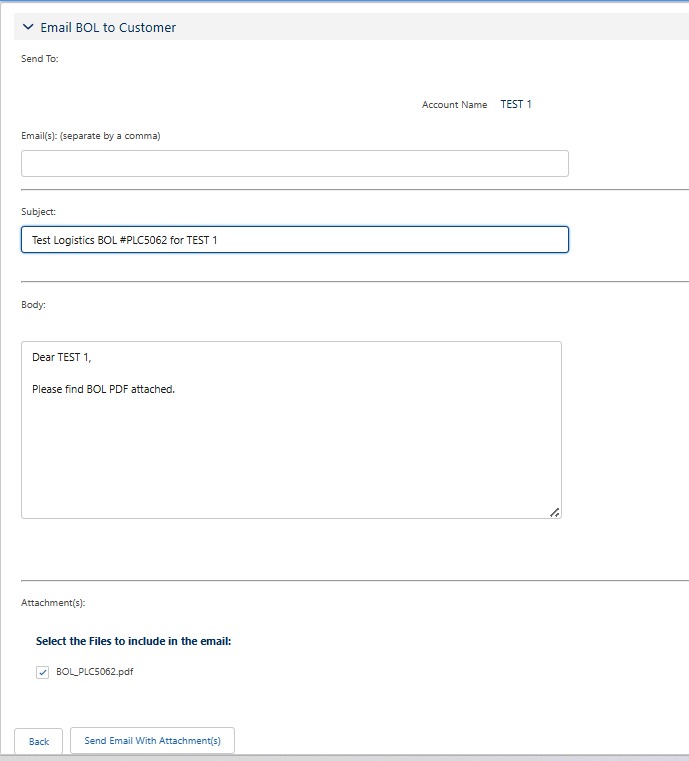
- Email BOL as an attachment
- Include files the record as well, with checkbox(select/deselect)
💡 No risk of mismatch. Because the BOL pulls directly from live load data, what’s in the system always matches what the driver is carrying. If the load changes, generate a new BOL, it reflects the current state every time.
Making the BOL Your Own
The BOL header uses your company’s information automatically. Here is what you can configure:
Company Logo
Your logo appears in the top-left corner of every BOL. To update it:
- In Salesforce Setup, navigate to Custom Code → Static Resources
- Click New, upload your logo file (PNG format), set Cache Control to Public
- Give it the name referenced in the BOL template
- Save — the next BOL generated will use your new logo
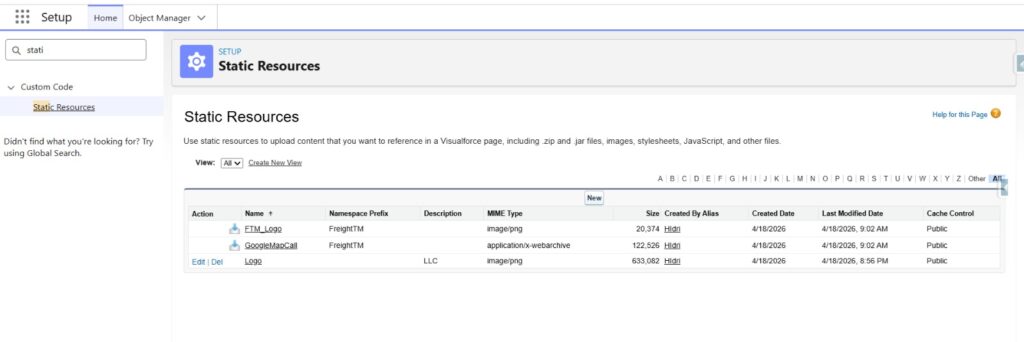
→ See Step #2 of the setup guide for the full logo upload walkthrough.
Company Information
The following fields are pulled automatically from your Salesforce Organization settings and appear on every BOL your team generates:
- Company name
- Street address, city, state, zip
- MC number
- Phone
- Fax
To update these, go to Salesforce Setup → Company Settings → Company Information. Changes are reflected on all new documents immediately.
The Bill of Lading in the Freight Document Lifecycle
The BOL is the first operational document generated on a load. Once the shipment moves, two more follow — and all four pull from the same data in FTM, with no re-entry between steps.
Generated at dispatch. Travels with the driver.
Bill of Lading
Signed before the first load. Governs the entire relationship.
Shipper formally offers the load. Carrier accepts or declines.
Sent immediately after acceptance. Locks in the lane, rate, and terms.
Shipper requests a price. Broker or carrier responds with a quote.
Signed at delivery. Triggers invoicing.
Sent to the customer after confirmed delivery.
Ready to see FTM in action?
Book a live demo and we’ll walk you through the full document workflow: BOL, Rate Con, Invoice, and Lane Quote – directly inside the platform.
