Sent to the carrier before the truck rolls. Lane, rate, contacts, and terms — all in one document.
The Rate Confirmation is the agreement between your company and the carrier. It locks in the lane, the rate, and the operational details before dispatch — so there are no surprises at pickup or delivery. Once signed by the dispatcher, it becomes the carrier’s authorization to move the load.
In FTM, the Rate Confirmation is generated from the same Load record as the Bill of Lading. No separate workflow, no duplicate data entry — the carrier information, stop details, and rate are already in the system.
What FTM’s Rate Confirmation Includes
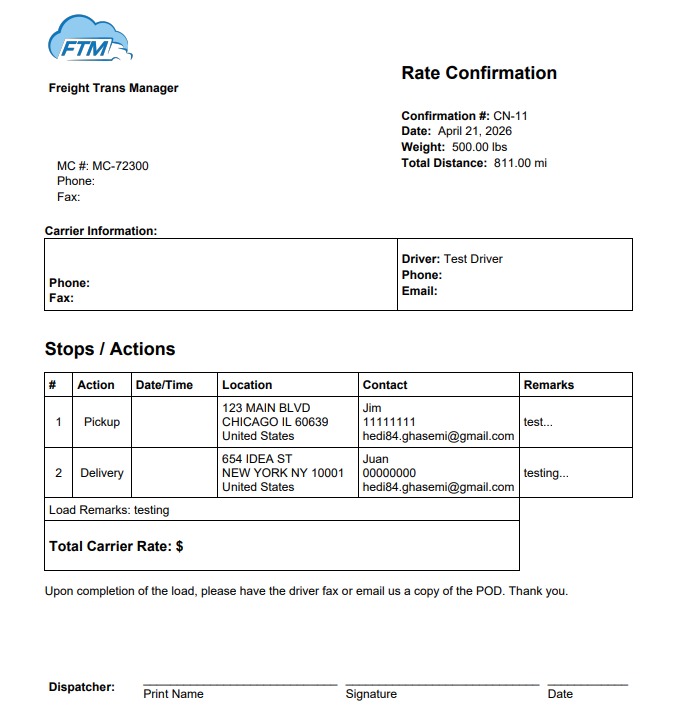
Header Information
- Confirmation number — unique reference for this rate confirmation
- Date issued
- Total weight (lbs)
- Total distance (miles)
Carrier Information
The carrier section is split into two parts — the carrier company on the left and the assigned driver on the right:
- Carrier name, phone, and fax
- Driver name, phone, and email
Stops and Actions
Unlike the Bill of Lading, the Rate Confirmation includes a Contact column at each stop — giving the carrier everything they need to coordinate directly with each location:
- Stop number and action type (Pickup / Delivery)
- Scheduled date and time
- Full address (street, city, state, zip, country)
- Contact name, phone, and email at each location
- Remarks / special instructions
Rate and Terms
- Total Carrier Rate — shown prominently at the bottom of the stops table
- POD instruction — reminder to fax or email a copy of the Proof of Delivery on completion
- Dispatcher signature block — print name, signature, and date
How It Works Inside FTM
The Rate Confirmation is generated from the Load object — the same record that produces the Bill of Lading and Invoice. The carrier and driver must be assigned to the load before generating, since their details appear directly on the document.
Step by step
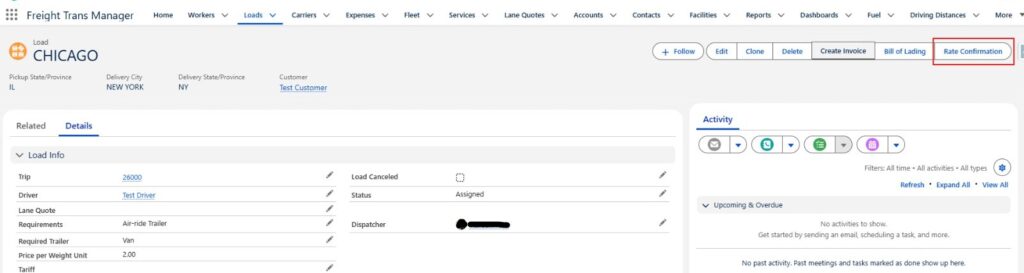
- Open the Load record in FTM
- Assign the Carrier and Driver to the load
- Click the Rate Confirmation button in the top action bar
- FTM generates the PDF with all carrier details, stop contacts, and the agreed rate
- Send to the carrier for review and dispatcher signature
- Email Rate Confirmation as an attachment
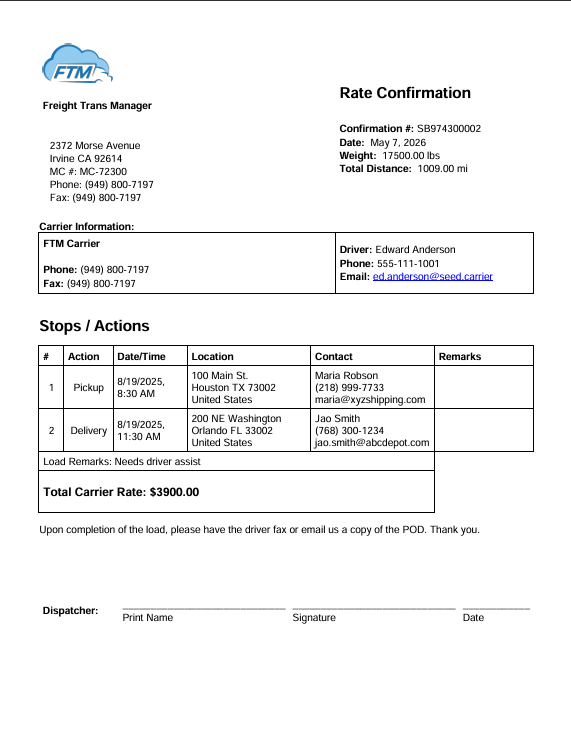
💡 Carrier and driver details are pulled automatically. FTM links the carrier and driver records to the load, so their phone numbers, emails, and names appear on the Rate Confirmation without any manual typing — reducing errors and saving time before every dispatch.
Making the Rate Confirmation Your Own
Company Logo
Your logo appears in the top-left of every Rate Confirmation. To upload or update it:
- In Salesforce Setup, navigate to Custom Code → Static Resources
- Click New, upload your logo file (PNG format), set Cache Control to Public
- Give it the name referenced in the Rate Confirmation template
- Save — the next Rate Confirmation generated will use your new logo
→ See Step #2 of the setup guide for the full logo upload walkthrough.
Company Information
The following fields appear in the header of every Rate Confirmation and are pulled from your Salesforce Organization settings:
- Company name
- Street address, city, state, zip
- MC number
- Phone
- Fax
To update these, go to Salesforce Setup → Company Settings → Company Information. Changes apply immediately to all new documents.
The Rate Confirmation in the Freight Document Lifecycle
The Rate Confirmation sits between the Lane Quote and the Bill of Lading. It’s the carrier-facing document that bridges the sales stage with execution — and it feeds directly into the BOL and Invoice that follow.
Signed before the first load. Governs the entire relationship.
Shipper requests a price. Broker or carrier responds with a quote.
Shipper formally offers the load. Carrier accepts or declines.
Rate Confirmation
Sent immediately after acceptance. Locks in the lane, rate, and terms.
Generated at dispatch. Travels with the driver.
Signed at delivery. Triggers invoicing.
Sent to the customer after confirmed delivery.
Ready to see FTM in action?
Book a live demo and we’ll walk you through the full document workflow — BOL, Rate Con, Invoice, and Lane Quote — directly inside the platform.
